The day sheet, the live cue and the cab — on the phone in your pocket.
Crew check in when they land on site, read their day, and watch the cue that is live — the same pointer the caller is moving. Drivers get the run, the dock and the load list.
You were sent an address and a call time and you are working eleven hours. You are not going to open a desktop app, you are not going to read a thread, and half the time you are in a loading dock with one bar. What you need is today, on a phone, correct.
- You want your day, not the company's week
- You are often on a bad connection, in a building made of steel
- You want to be told the change, not to go looking for it
Crew portal — Schedules
/crew/[showId]
Where the phone lands: the day, in order, colour-coded by category — rigging call, trucks at dock, crew lunch, focus — with the hotel you are in and the note that the house rigger is on the clock from 06:00. Five tabs across the bottom: Dates, Schedules, Dashboard, Chat, More.
What this module does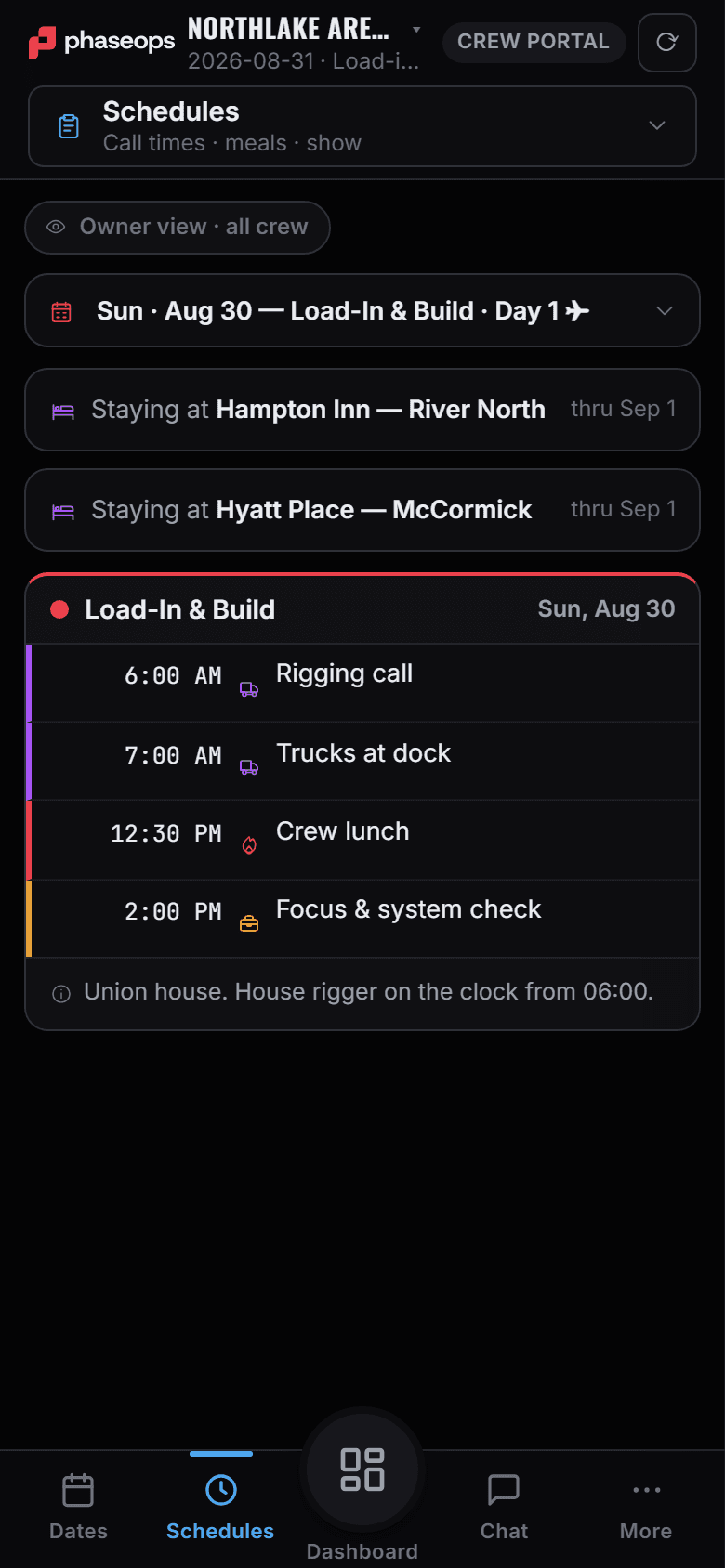
5 screens, and what each one is for.
Check-in
/crew/[showId]
One tap on arrival and one at the end of the day. It is queued on the device when there is no signal and replays on reconnect, so a dock with no bars does not cost you a check-in.
Read the module pageLive cue
/crew/[showId]
The cue that is on air, a timer on it, and how many cues away yours is — filterable to your own department. When it is not sure what is live it says 'Connecting — checking what's on air' rather than showing you a cue it is guessing at.
Read the module pageDriver portal — pick your show
/driver
What a driver opens first: the list of shows they are on, most recent first. Everything else — the run, the dock, the load — is one tap in from here.
Read the module page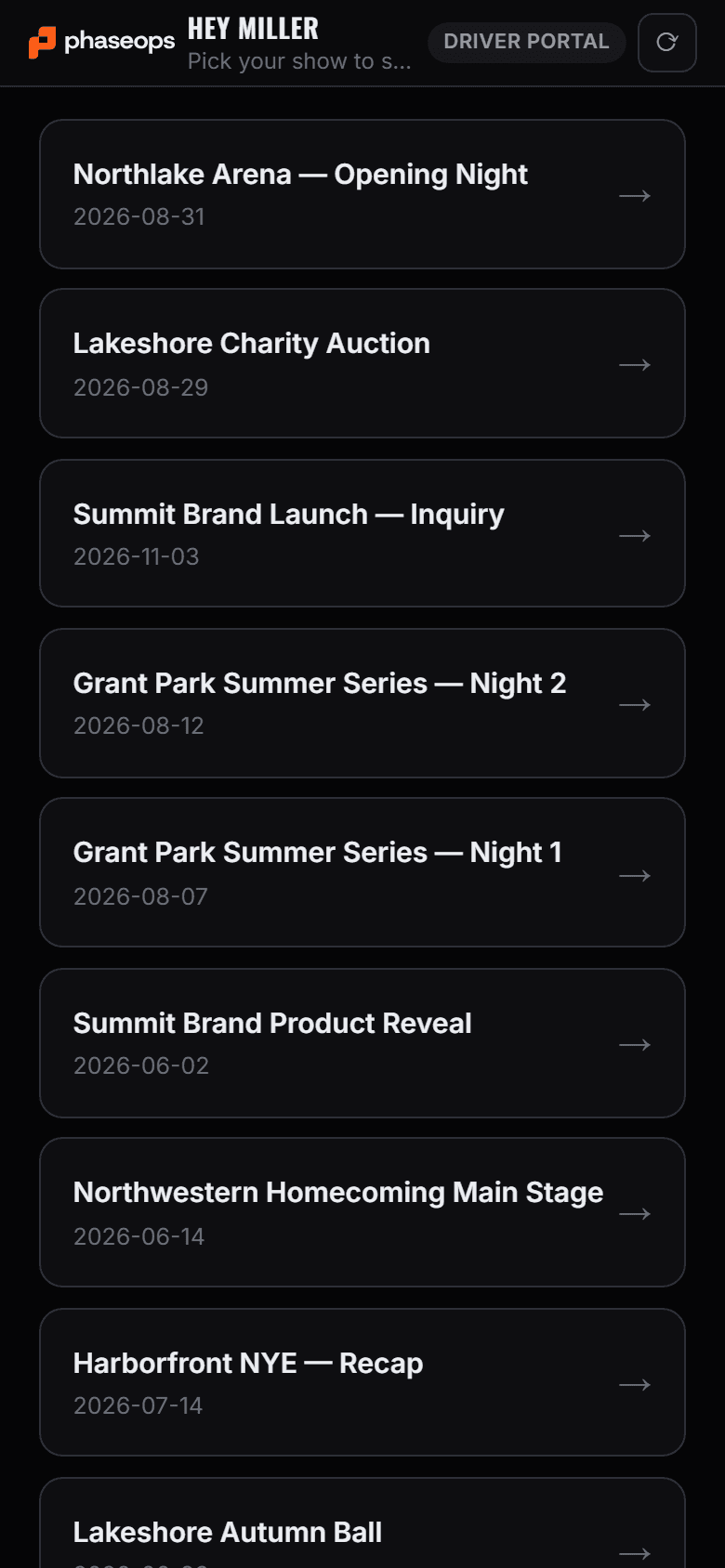
Driver — the run
/driver/[showId]
The truck, where it is going with directions and the venue contact, the load list by layer, the dock space, and the duty clocks with drive left, window and break in. Start and Stop Trip are on the same screen.
Read the module page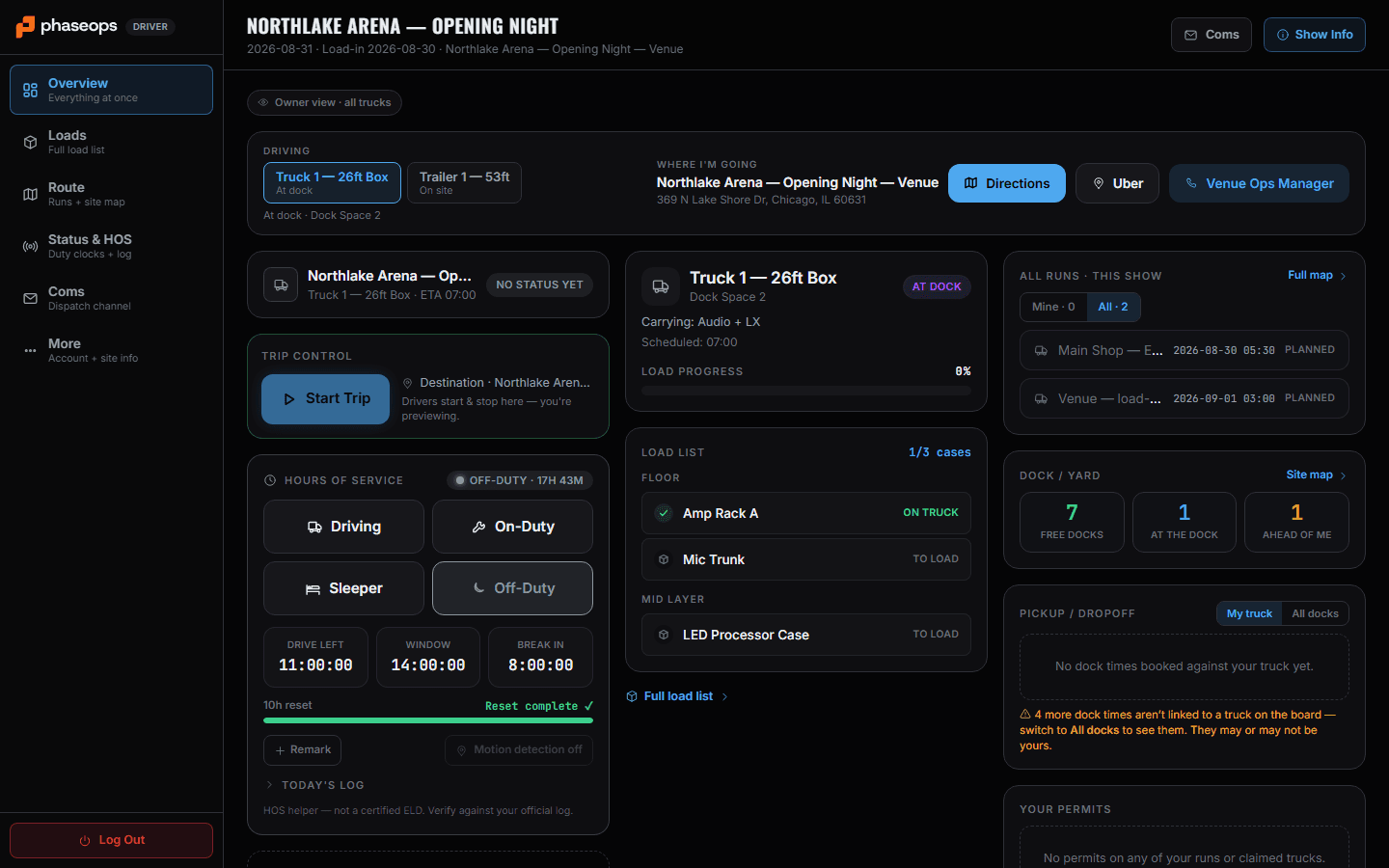
How you got on the show
/shows/[showId]/crewops
The other half of the story: the roster your name is on, the position you were assigned to, and the job board where open calls are posted for crew to sign themselves up.
Read the module page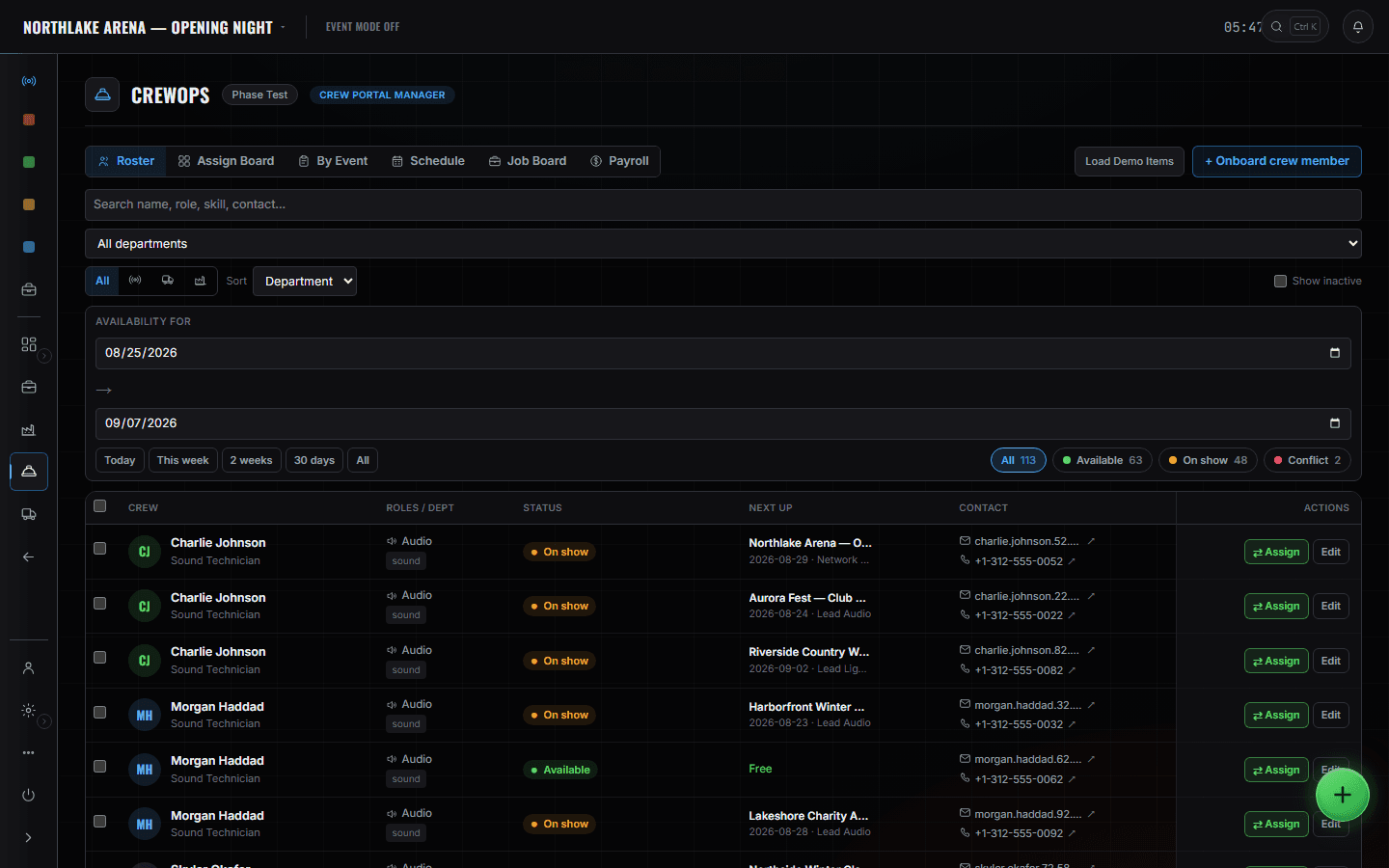
The boundary, before you find it yourself
Half of these are somebody else's screen and half of them are things this software does not do at all. Both are worth knowing now rather than at 16:00 on a load-in day.
Firing a cue
The phone reads the pointer the caller is moving. It never moves it.
Scanning gear
Not from the crew portal. The gear view there is read-only and says so in the product; scanning is the shop's screen.
Reporting your location
No crew location is ever sent. The only geolocation in either portal is the driver's opt-in motion watch, and it stays on the device.
Working fully offline
The offline queue is narrow on purpose: check-in, check-out, field notes and live notes queue and replay. Issue photos and other writes need a connection.
Load-in, show, load-out.
- Night beforeRead tomorrow: call time, address, hotel, and what time the trucks land.Crew portal · Schedules
- ArrivalOne tap checks you in. It queues if the dock has no signal.Crew portal
- Load-inThe day in order, colour-coded, so lunch is not a rumour.Crew portal · Schedules
- Driver, same morningPick the show, read the run, set the dock, work the load list.Driver portal
- Pre-showConfirm you are ready, so the caller's readiness check is not failing on your department.Crew portal
- LiveThe cue on air, a timer on it, and how far away yours is.Crew portal · Live
- WrapCheck out. Report anything broken against the gear or the cue it was about.Crew portal