Your patch, your gear and your cues — on the show everyone else is reading.
Inputs, outputs, sound config files and the RF plan live on the audio department's own sheets. The cues you are on are tagged on the rundown, so the phone in your pocket shows yours instead of all of them.
A1, A2, monitors or crew chief — you arrive with a patch in your head and a case count in your pocket, and you spend the first hour finding out which of the two the rest of the show agrees with. What you want from software is a single answer to 'what did we say' that the shop and the producer are also looking at.
- Your sheets are department-owned: patch, inputs, outputs, sound config files
- You care which of your cases actually left the shop, not which were listed
- On show day you want your cues, not the whole rundown
Departments — Audio
/shows/[showId]/departments
Your card, and the four things on it: how many of your sheets are done, how much gear is on the event, how many of your crew have checked in, and how many tasks are still open. The tabs on the card are the sheets themselves — Patch, Inputs, Outputs, Sound config files.
What this module does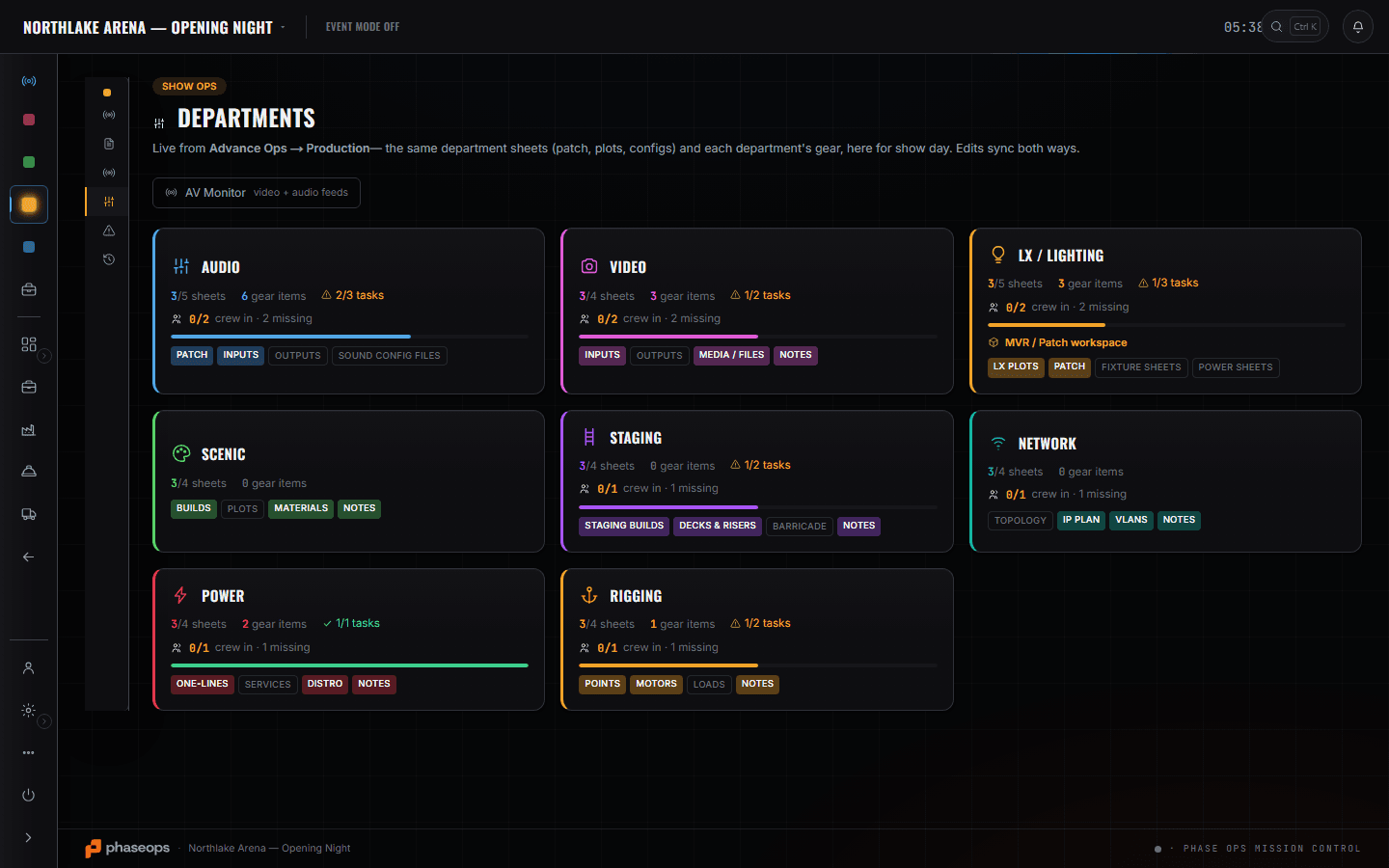
5 screens, and what each one is for.
Audio sheets
/shows/[showId]/departments
Patch, inputs, outputs and sound config files, edited on the department card and readable from Advance → Production. They sync both ways, so the version the venue was sent and the version on the deck are the same version.
Read the module pageShow Ops — Edit Mode
/shows/[showId]/flow
Where a cue gets Audio / Sound tagged onto it. That tag is the mechanism behind everything the crew phone does for you later — it is not decoration on the rundown.
Read the module page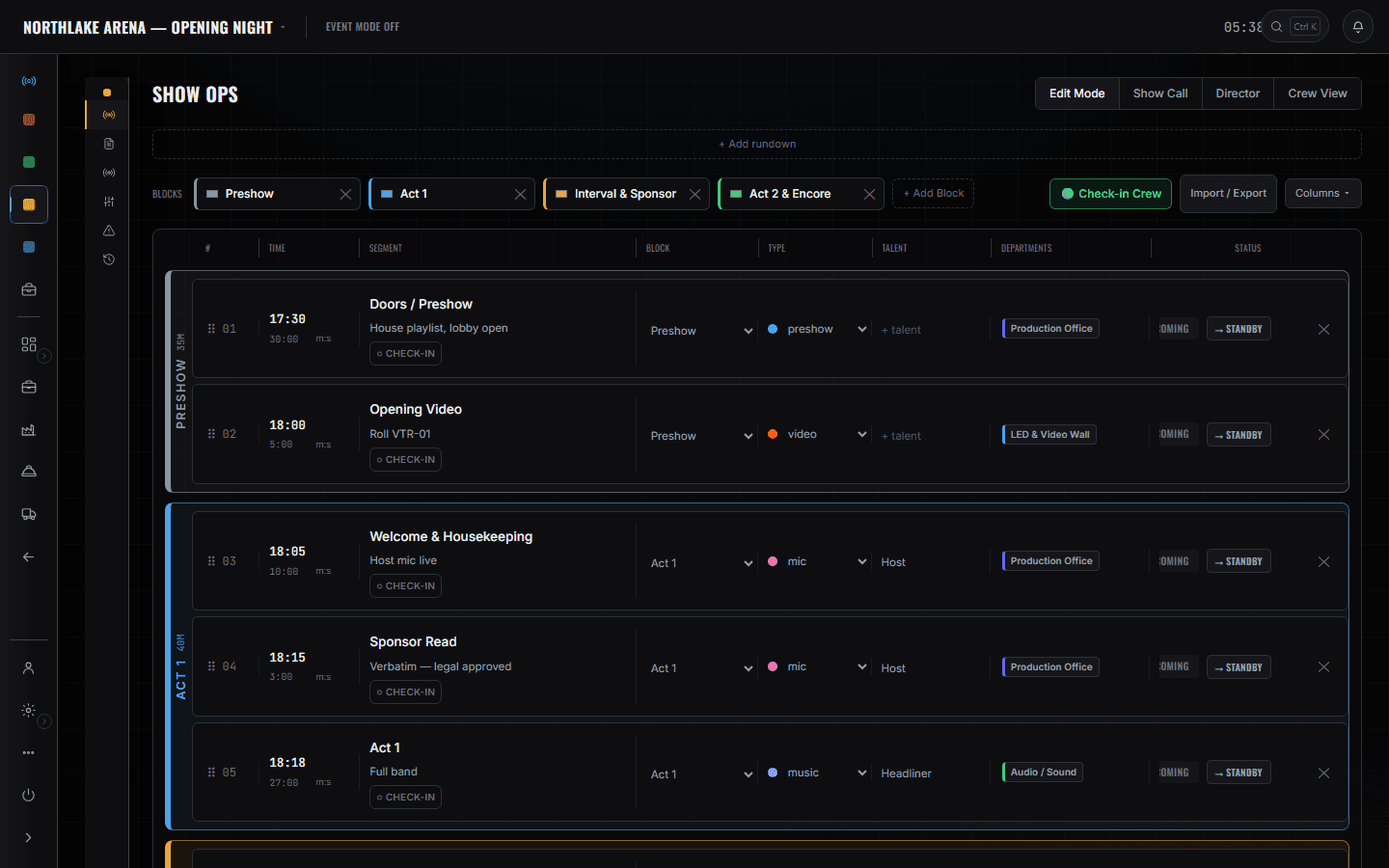
Gear List
/shows/[showId]/gear
Your gear on the event, by category, with a pulled count against the quantity. '6 of 8 pulled' on a Shure Axient channel is the number you want before you leave, and it comes off the shop's scans rather than a promise.
Read the module page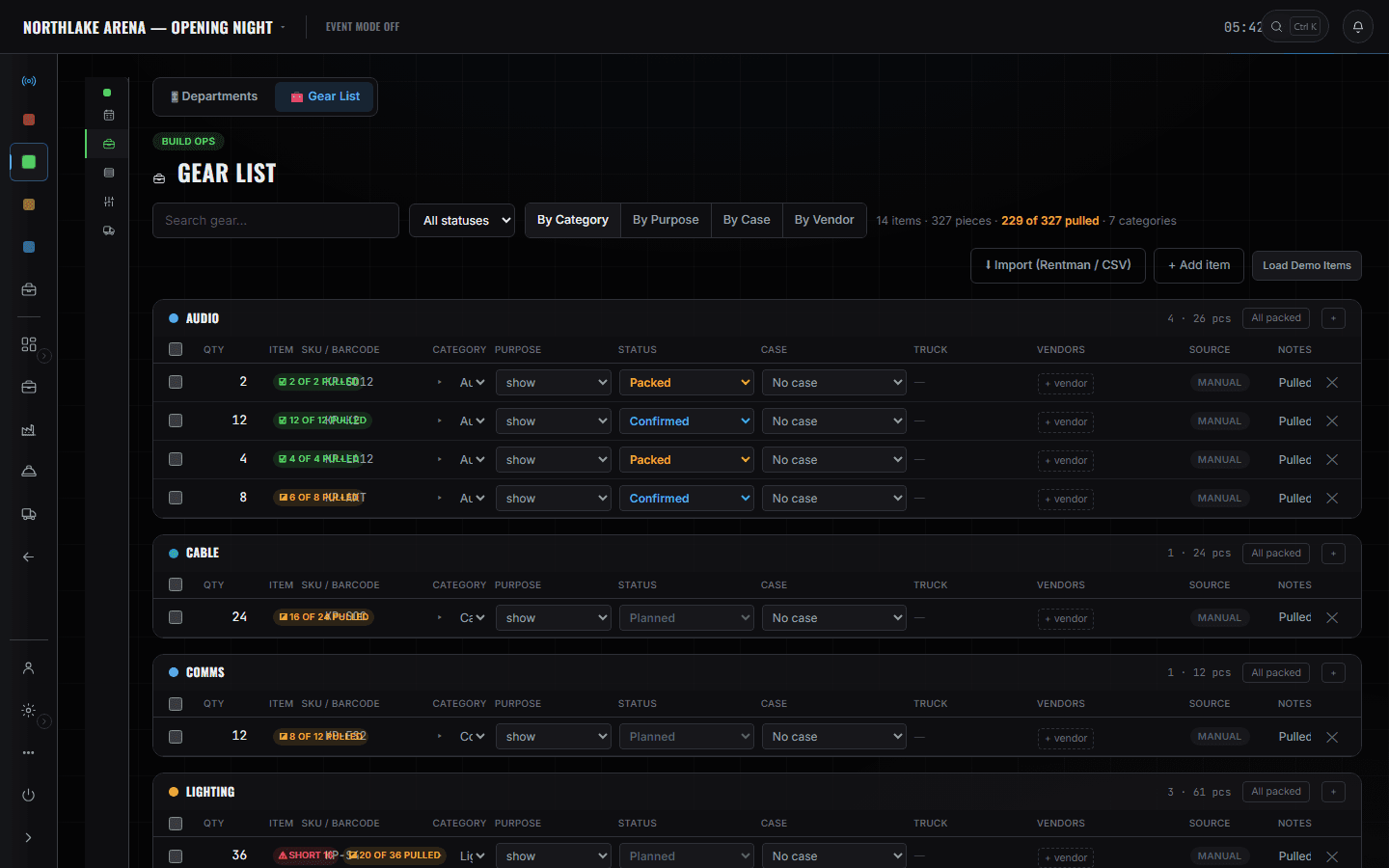
ShopOps pull sheet
/shows/[showId]/shop
The shop side of the same list: which cases are packed onto which truck, and what is short. If the amp rack is on the floor layer of Truck 1, this is where that is written down.
Read the module page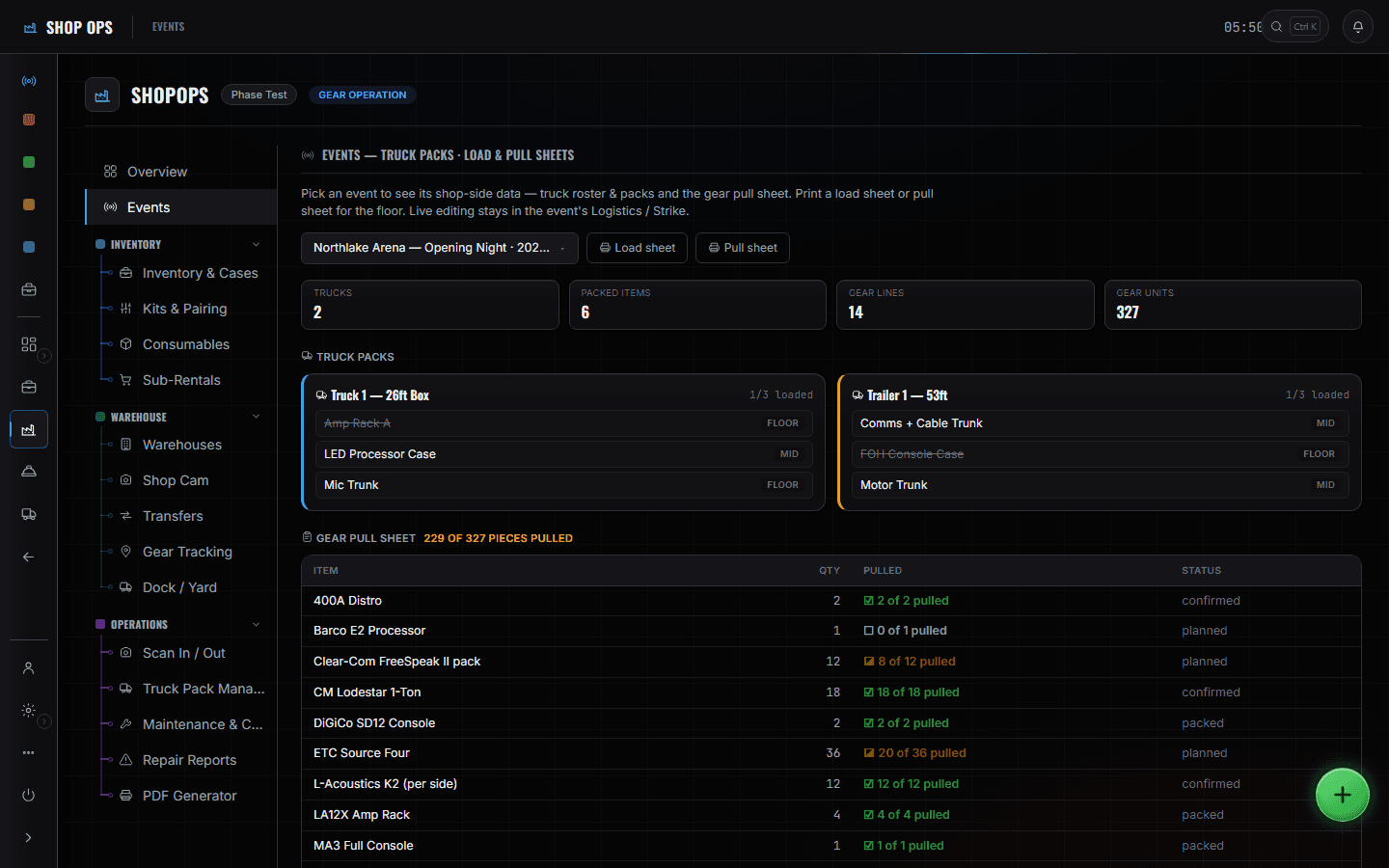
The crew phone
/crew/[showId]
Your call times and meals, and during the show the cue that is live with a filter for your own department — so an A2 on deck sees audio cues coming rather than scrolling the whole running order.
Read the module page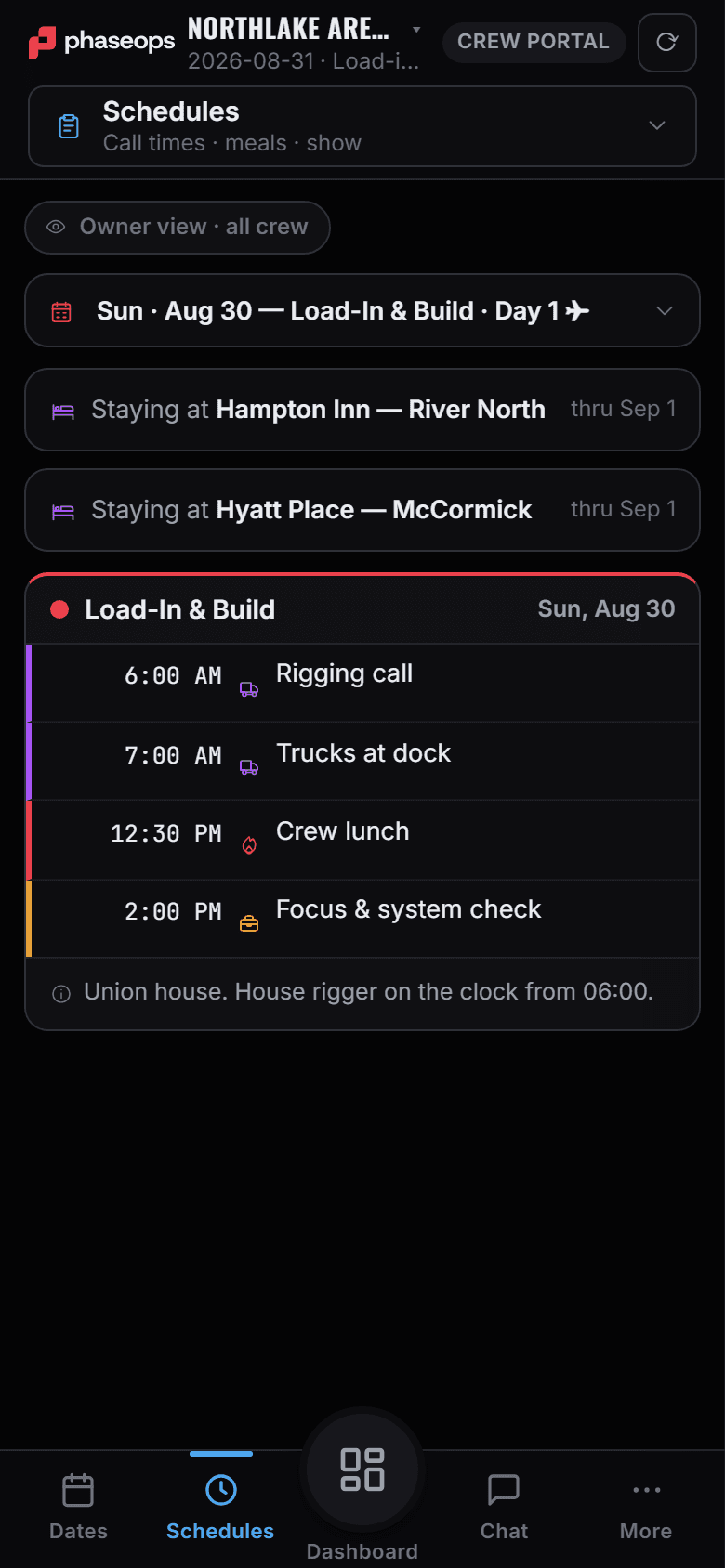
The boundary, before you find it yourself
Half of these are somebody else's screen and half of them are things this software does not do at all. Both are worth knowing now rather than at 16:00 on a load-in day.
Your console
Nothing here talks to a desk, a stagebox or a DSP. The patch sheet is paperwork that agrees with itself, not a control surface.
RF coordination
There is no frequency solver. The RF plan is a sheet you write and the show reads.
The call
You read the cue pointer. You do not move it.
Load-in, show, load-out.
- PrepCheck the pulled count on your lines before the truck is closed.Build Ops · Gear List
- Load-inFind your cases by truck and layer instead of opening all of them.ShopOps · Events
- BuildPatch and inputs onto the department sheet, once, where the venue copy came from.Show Ops · Departments
- SoundcheckYour build item goes in-progress; a blocked one names who is holding it.Build Ops · Build Schedule
- Pre-showCheck in from the phone so the caller's readiness check is not failing on you.Crew portal
- LiveWatch your own cues arrive, filtered to audio.Crew portal · Live
- Load-outScan cases back so the count that leaves matches the count that returns.ShopOps · Scan In / Out