Sources, destinations and the media list, next to the cues they hit.
The video department's sheets — inputs, outputs, media and files, notes — sit beside the rundown that says which cue the roll lands on. Same record, no second copy.
V1, LED tech, playback or camera lead. Your day is a list of sources, a list of destinations and a list of files, and the expensive failure is always the same one: the version of the content on the server is not the version in the rundown. You need both lists in the same place as the cue that plays them.
- Your sheets are sources, destinations, media and files
- Your cues are named on the rundown — Opening Video rolls VTR-01
- Your gear is heavy, expensive and packed in a specific order
Departments — Video
/shows/[showId]/departments
Your card carries the sheet count, the gear on the event, who has checked in and the open tasks, with Inputs, Outputs, Media / Files and Notes as the tabs behind it. It is the same data Advance → Production shows the venue.
What this module does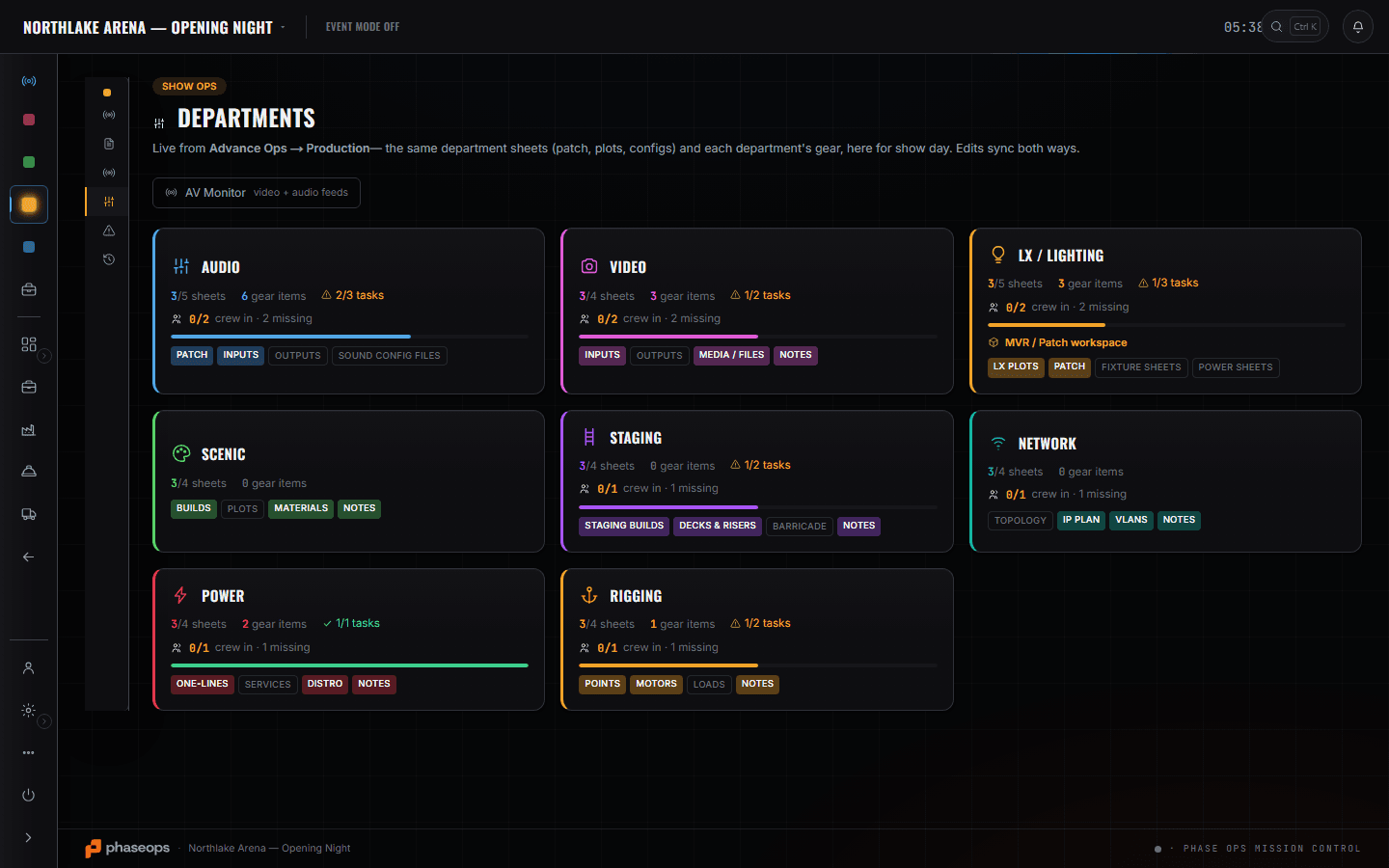
5 screens, and what each one is for.
Video sheets
/shows/[showId]/departments
Inputs, outputs, and the media / files list. Edits sync both ways with Advance → Production, so the file list the producer sent out and the one on the deck cannot disagree.
Read the module pageShow Ops — Edit Mode
/shows/[showId]/flow
Cues carry a type and a department. 'Opening Video · video · LED & Video Wall · Roll VTR-01' is one row on the rundown, and it is what makes the crew phone able to show you only your cues.
Read the module page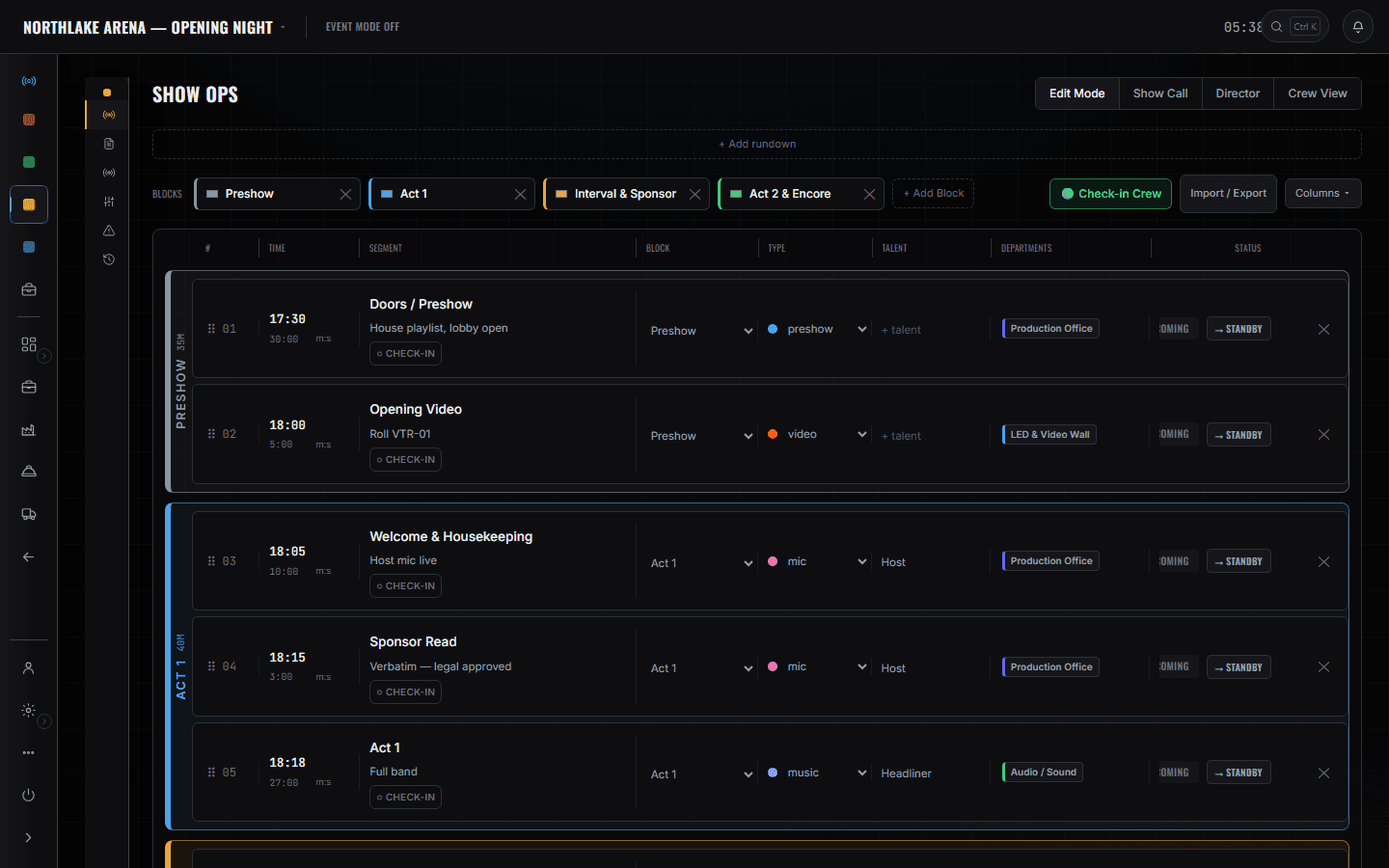
Gear List
/shows/[showId]/gear
The processor, the panels and the spares, with a pulled count per line. A '0 of 1 pulled' on the Barco E2 is the kind of thing you want to read in the shop, not at the dock.
Read the module page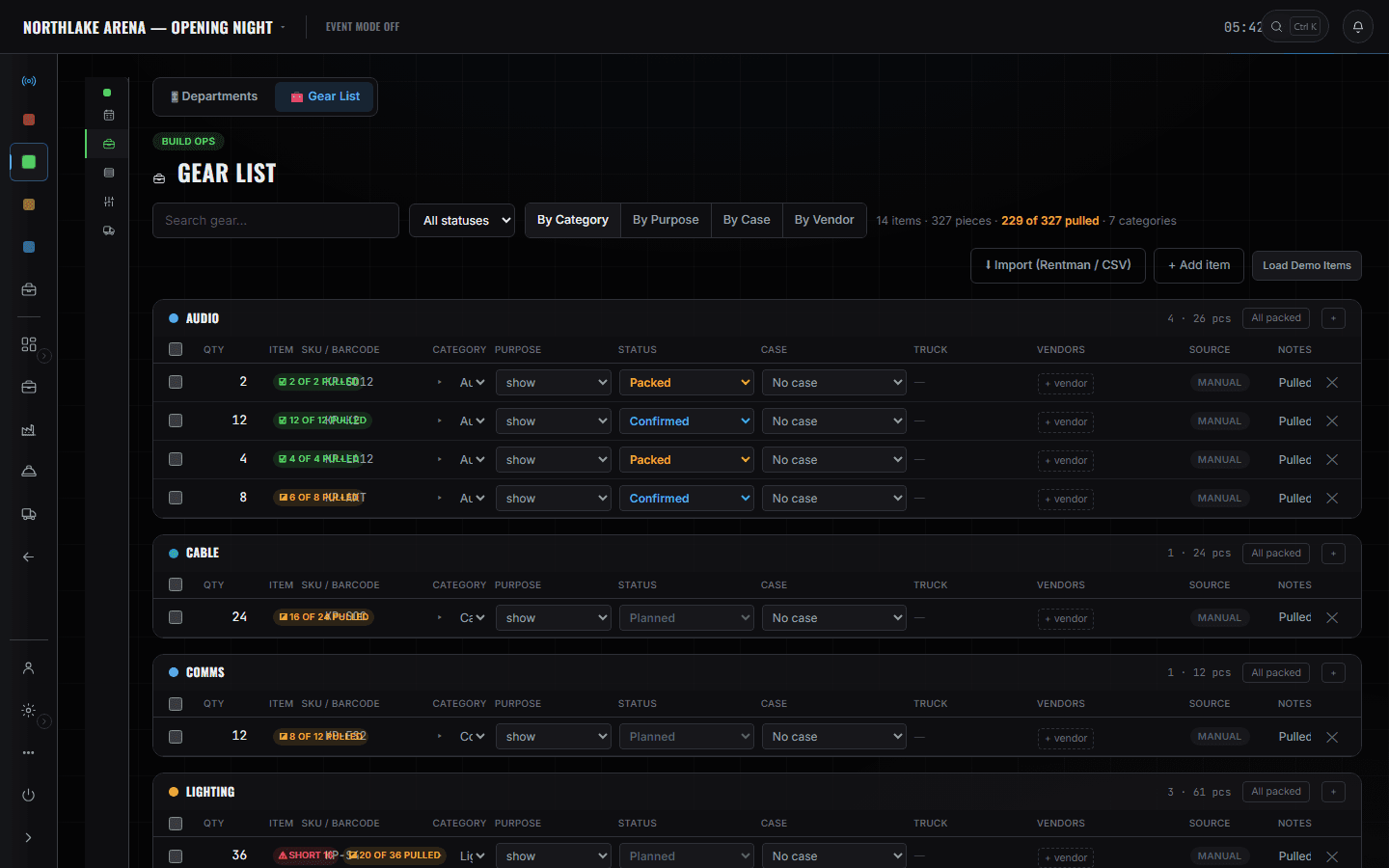
ShopOps pull sheet
/shows/[showId]/shop
Which truck your cases are on and which layer they are packed at. The LED processor case being mid-layer on Truck 1 is a fact somebody has to know at 06:00.
Read the module page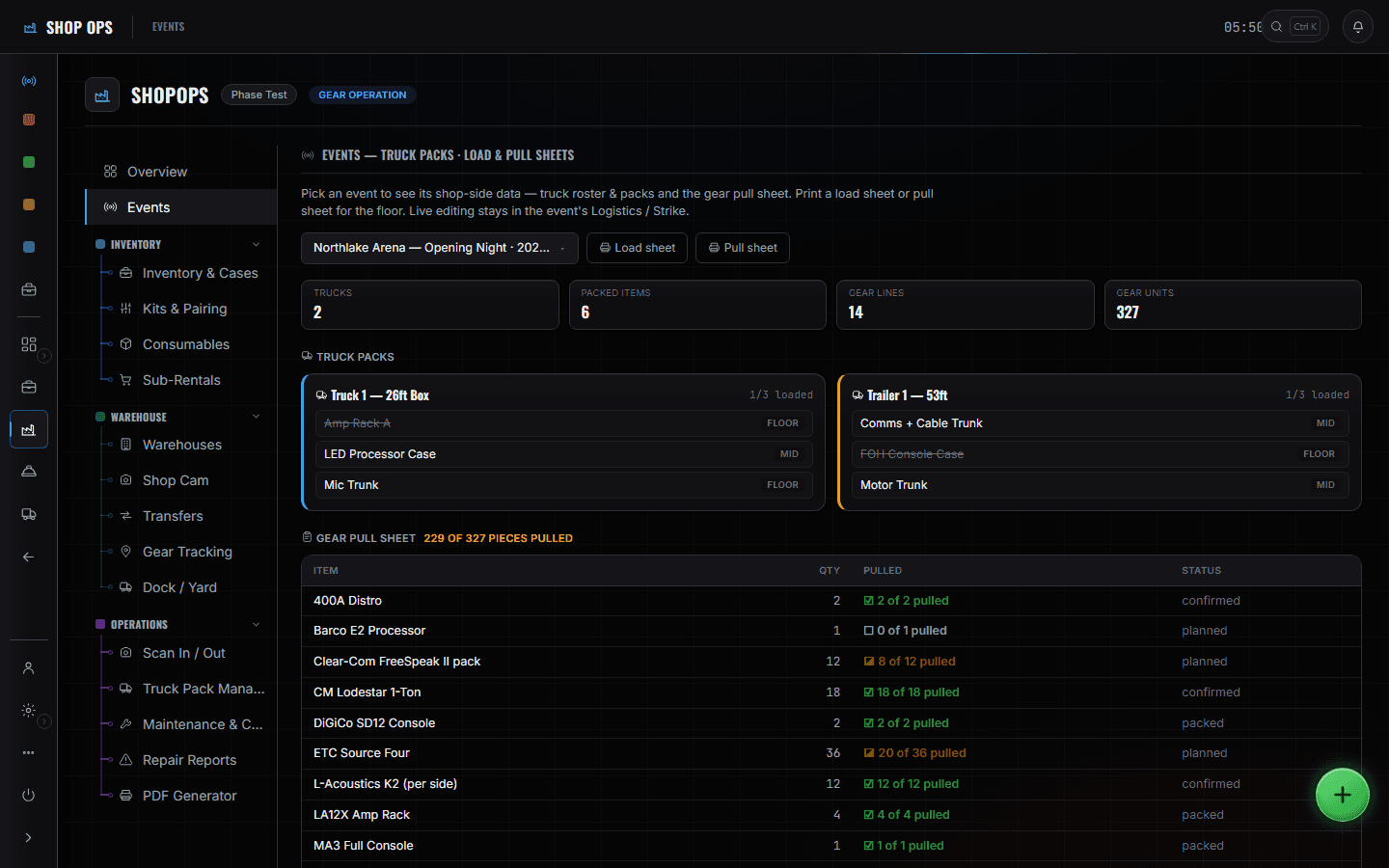
The crew phone
/crew/[showId]
Call times and the live cue, filtered to your department, with a countdown to the next one that is yours.
Read the module page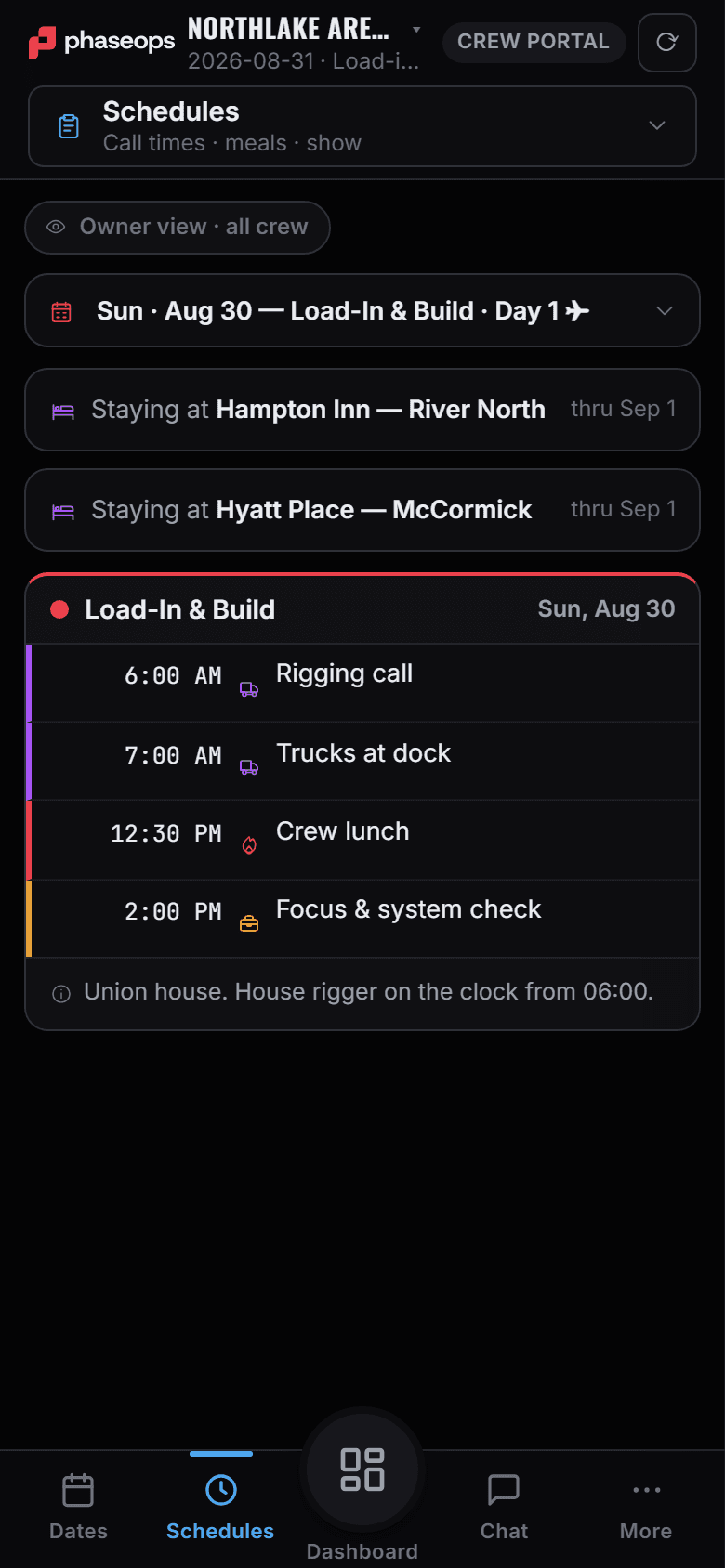
The boundary, before you find it yourself
Half of these are somebody else's screen and half of them are things this software does not do at all. Both are worth knowing now rather than at 16:00 on a load-in day.
Your switcher or media server
No control, no playback, no transport. The rundown says a roll is coming; the machine that rolls it is yours.
Timecode
There is no LTC in or out anywhere in this product. Cues are pressed by a person.
File delivery
The media list names the files. It is not a transfer service and it will not hand anyone a download.
Load-in, show, load-out.
- PrepCheck the processor and panel counts are pulled, not just planned.Build Ops · Gear List
- Load-inCases by truck and layer, so the wall goes up in the order it was packed.ShopOps · Events
- BuildSources and destinations onto the department sheet as they get confirmed.Show Ops · Departments
- ContentThe media list next to the cue it plays on, so the version question has one answer.Show Ops · Departments
- Pre-showCheck in from the phone; the caller's readiness check reads it.Crew portal
- LiveYour cues, filtered to video, with the next one counting down.Crew portal · Live
- Load-outScan the cases back in; anything that does not scan shows as still out.ShopOps · Scan In / Out